
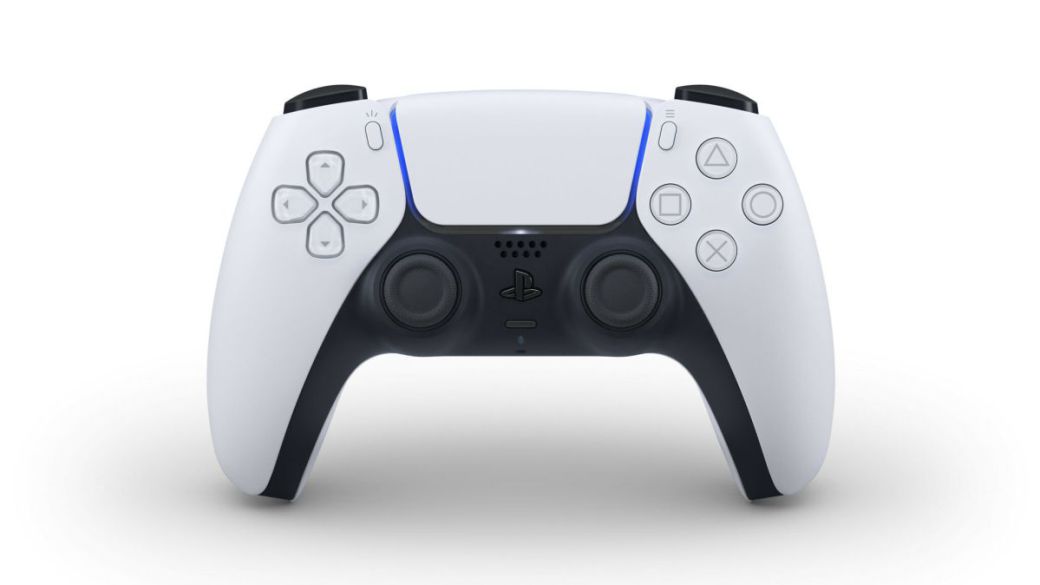
We detail how you can correctly synchronize the DualSense of PlayStation 5 (PS5) on your console, now available worldwide.
The DualSense is one of the main novelties and innovations that PlayStation 5 brings with it. The console is now available throughout the world, so we can enjoy titles such as Astro Playroom or Demon’s Souls, among others, in style. By this we mean what functions such as adaptive triggers, haptic sensors or the sounds that the command itself emits when an enemy throws a bomb at Boletaria, for example. What we can not know if we are newcomers to the world of consoles or simply do not dominate the Sony machine too much is how to synchronize the DualSense to PS5, so we will explain it step by step in this simple tutorial below.
You may also like:
- PS5: how to transfer your games, games and data from PS4 to PlayStation 5
- PS5: How to Download Free Games on PS5 and PS Plus
- PS5: How to Play PS4 Games on PlayStation 5
- PS Plus Collection on PS5; all games, price and how it works
- PS5: How to create a PSN account on PlayStation 5
- How to turn on, turn off and put the PS5 to sleep
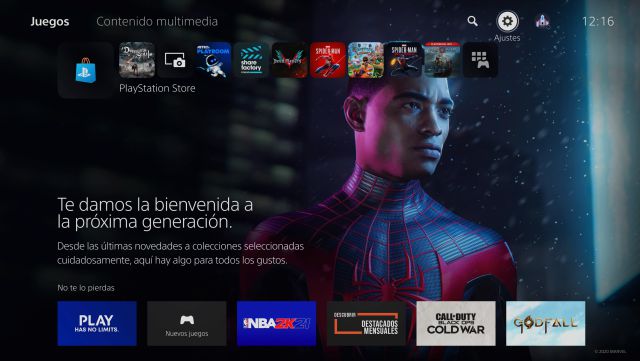
How to sync DualSense to PS5
When we start the PlayStation 5 console, they will tell us on the screen that we must press the button with the Play symbol in order to synchronize it with the console easily and simply. Even so, it is likely that sometimes we use the controller to play other platforms with which it is compatible, so it gets out of sync with the PS5. To re-sync, we must take the following steps:
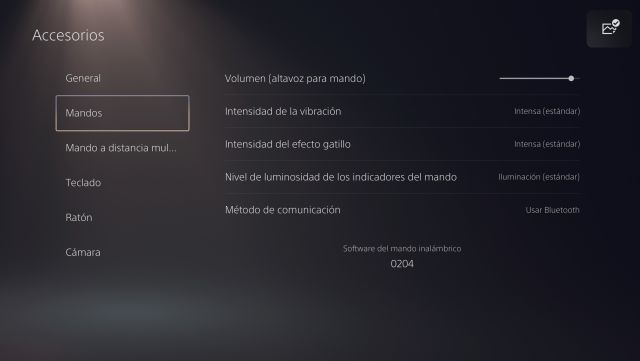
In that same section we can also tweak other sections to our liking, such as Volume (speaker of the command itself), Vibration intensity, Trigger effect intensity and the level of brightness of the control indicators.
 "
"