
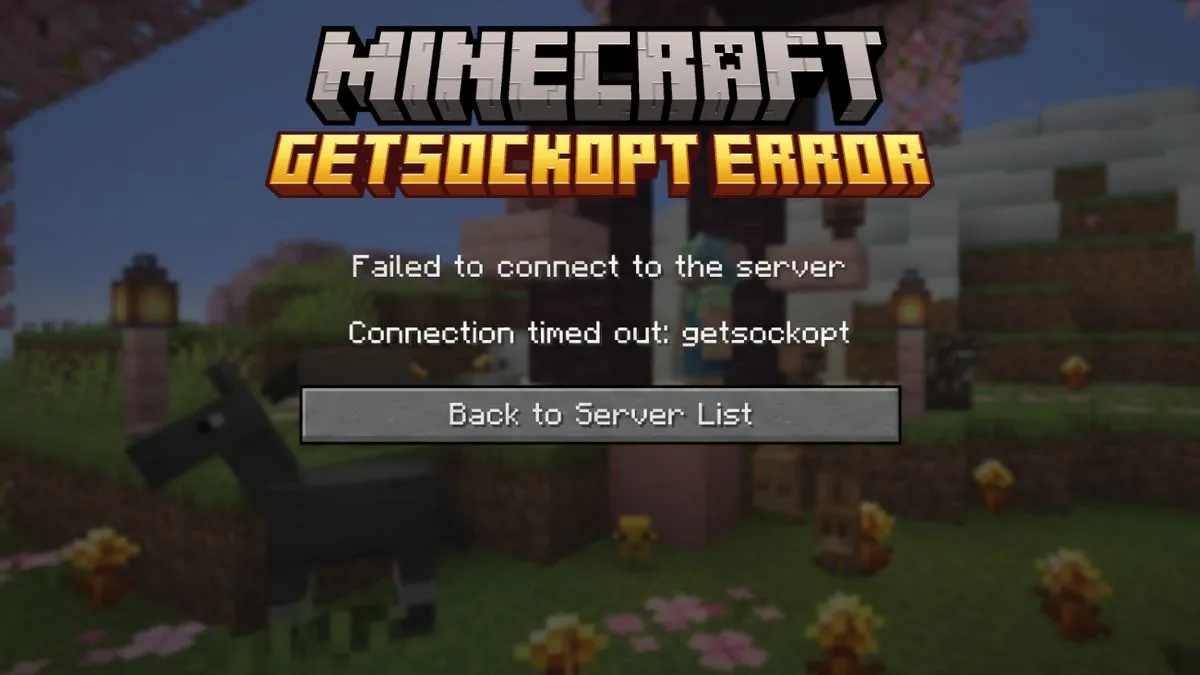
When Minecraft players attempt to join a server, the single‑line message “Connection timed out: getsockopt” can abruptly halt the session.
What Triggers the Getsockopt Error?
The error is a network‑related fault that surfaces when the game cannot secure or retain a stable link to the Minecraft servers or modded alternatives.
Typical culprits include firewall blocks, outdated Java versions, DNS misconfigurations, server outages, or clerical errors in an IP address.
Occasionally, the message escalates to “connection refused,” indicating an active rejection by the target server.
Validate Your Basic Connectivity
Confirm the intended server is online, and verify your Wi‑Fi or wired connection is functional.
A quick power cycle of the router often resolves the getsockopt glitch without tweaking system settings.
Ensure that the Java Runtime Environment powering Minecraft is current; older versions can provoke Java Native Interface (JNI) errors that masquerade as getsockopt failures.
Permit Minecraft Through the Firewall
On Windows, search “Windows Defender Firewall” and open the application.
Navigate to “Allow an app or feature through Windows Defender Firewall,” then locate and enable both “Private” and “Public” boxes for “javaw.exe” and “Java Platform SE.”
Similarly, allow “Minecraft” and “Minecraft Launcher.” If they’re missing, use “Allow another app” and browse to the installation directory.
These adjustments prevent the security suite from intercepting Minecraft’s Java‑based traffic.
Switch DNS Servers for Stability
Open Control Panel → Network and Internet → Network and Sharing Center → Change adapter settings.
Right‑click the active connection, choose “Properties,” then select “Internet Protocol Version (TCP/IPv4)” and click “Properties.”
Check “Use the following DNS server addresses,” set “Preferred DNS server” to 8.8.8.8 and “Alternate DNS server” to 8.8.4.4, then reboot the PC to enforce the changes.
When to Disable the Firewall Temporarily
If the previous steps fail, toggle the Defender Firewall off on both private and public networks via “Turn Windows Defender Firewall on or off.”
Observe whether the getsockopt error disappears; if so, the issue emanates from the security software.
Remember to re‑enable the firewall immediately to avoid exposure to malware.
Final Checks Before Contacting Support
Verify the server IP for typographical mistakes; a single mis‑typed character can trigger a connection‑refused getsockopt message.
Confirm that Java is fully updated, as obsolete runtime components can conflict with Minecraft’s networking stack.
If all else fails, reaching out to Mojang Studios may provide a resolution tailored to your specific environment.
With these steps completed, players can resume building, mining, and exploring without the interruption of the dreaded getsockopt timeout.
 "
"